Chapter 10:
Settings Regarding Operation Environment
This chapter describes settings regarding the operation environment.
10.1 Related to Menu Display
Make settings related to menu display.
Display language setting (LANGUAGE SELECTION)
This function sets the language used on the display.
One of ten languages can be selected: English, Japanese, German, French, Italian, Spanish, Portuguese, Russian, Korean, and Chinese.
Operation
1. Press the [ ] icon.
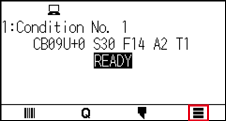
2. Press the [CONFIG].
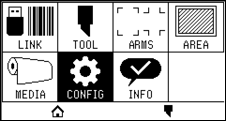
3. Press the [GENERAL].
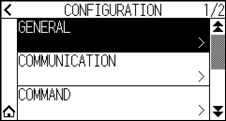
4. Press the [LANGUAGE SELECTION].
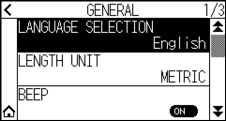
5. Use the [ ] and [
 ] icons to display the language you want to use.
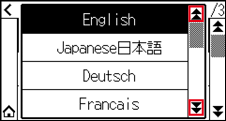
6. Press the language you want to use.
7. Press the [ ] icon.
 It will return to HOME screen.
Display Length Unit Setting (LENGTH UNIT)
The coordinate values that appear on the display and the other parameters for various settings can be changed to either meter or inch display.
Operation
1. Press the [] icon.
2. Press the [CONFIG].
3. Press the [GENERAL].
4. Press the [LENGTH UNIT].
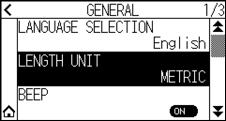
5. Press the length unit you want to use.
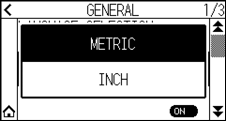
7. Press the [] icon.
It will return to HOME screen.
10.2 Related to sensor
This section describes how to make the sensor-related settings.
Enabling/Disabling the media sensors
You can disable the sensors that detect the presence or absence of media and the size of the medium in the feed direction.
If you want to enable it, set it back to "ENABLED" here.

Normally, please use it while set to “ENABLED”. Turn it DISABLED when setting undetectable media with high transmittance.
When set to “DISABLED”, the cutting mat may be damaged. Please be sure to configure the “area”.
Operation
1. Press the [] icon.
2. Press the [CONFIG].
3. Press the [] icon.
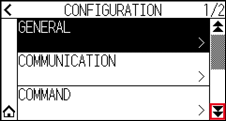
4. Press the [SENSOR].
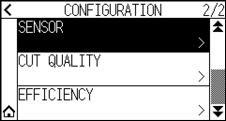
5. Press the [MEDIA SENSOR].
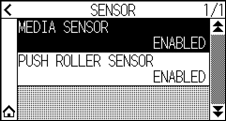
6. Press the [ENABLED] or the [DISABLED] for the sensor.
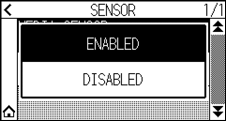
7. Press the [] icon.
It will return to HOME screen.
Enabling/Disabling the push roller sensors
Set the push roller sensors that detect the width of the media to "DISABLED".
If you want to enable it, set it to "ENABLED" here.
Usually, please use it while set to “Enabled”.
When set to “Disabled”, the cutting mat may be damaged. Please always set the “Cutting Area”.
Operation
1. Press the [] icon.
2. Press the [CONFIG].
3. Press the [] icon.
4. Press the [SENSOR].
5. Press the [PUSH ROLLER SENSOR].
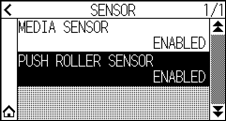
6. Press the [ENABLED], [INSIDE DISABLED] or [DISABLED] for the sensor.
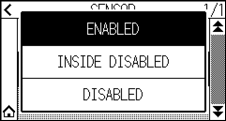

• “INSIDE DISABLED” is displayed for CE8000-130.
• It will not generate error even if the inner push rollers are not on the grit rollers when the “INSIDE DISABLED” is selected.
• When “DISABLE” has been set, the home sensor position is not detected, so depending on the data, a position error could occur. Please always set the “CUT AREA”.
7. Press the [] icon.
It will return to HOME screen.
10.3 Plotter Environment-related Settings
This section describes how to make the plotter environment-related settings.
Fan suction setting
This function sets the suction force used to affix media to the plotter.
It may not feed properly if the media is thin, so set to "WEAK".
Operation
1. Press the [] icon.
2. Press the [CONFIG].
3. Press the [GENERAL].
4. Press the [] icon twice.
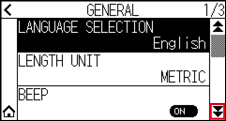
5. Press the [FAN POWER].

6. Press the setting value you want to use.
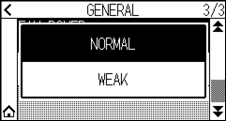
7. Press the [] icon.
It will return to HOME screen.
Media set assist settings
Media set assist is an auxiliary function that operates a suction fan when loading media to make it easier to load the media.
• Depending on the type of media, using Media Set Assist may make it difficult to set the media. In this case, please make the setting to [OFF].
• The strength of suction is linked to the [FAN] setting.
• Media set assist operates when the media sensor detects media while the HOME screen is displayed (only while the media set lever is down).
Operation
1. Press the [] icon.
2. Press the [CONFIG].
3. Press the [GENERAL].
4. Press the [] icon twice.
5. Press [MEDIA SET ASSIST] to turn it to [ON].
To cancel, set it to [OFF].
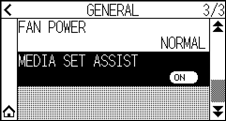
The default value has been set to [ON].
6. Press the [] icon.
It will return to HOME screen.
Enabling/Disabling the beep setting
You can turn off the buzzer sound.
If you want to enable the buzzer sound again, set it here.
Operation
1. Press the [] icon.
2. Press the [CONFIG].
3. Press the [GENERAL].
4. Press [BEEP] to turn it to [ON].
To cancel, set it to [OFF].
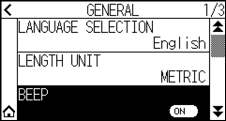
5. Press the [] icon.
It will return to HOME screen.
LCD contrast setting
You can set the contrast of the LCD display on the control panel.
Operation
1. Press the [] icon.
2. Press the [CONFIG].
3. Press the [GENERAL].
4. Press the [] icon.
5. Press the [LCD CONTRAST].
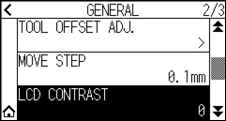
6. Specify the setting value using the [ ] [
] [ ] icon or the [
 ] icon.
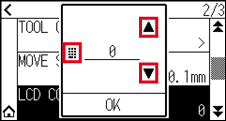
You can set the range between -30 and 30 (5 steps).
7. Confirm the setting and press the [OK].
8. Press the [] icon.
It will return to HOME screen.